

10 Best Practices for Production Planning in Beas
Ten settings that decide whether the schedule holds.
Most APS problems are not software problems. They are a time unit entered wrongly, a resource left without limits, or a manual move nobody recalculated. Each practice below names the Beas setting or procedure, the risk if it is ignored and the steps to fix it.
The ten, by priority
- Keep Setup time and Mach+Labor Time/unit correct on every routing position
- Enter Planned capacity net of downtime, with the right Number of machines/persons
- Switch on Consider resource limits for resources that really limit output
- Give every resource a shift schedule and switch on Check calendar
- Record capacity changes as resource calendar exceptions, with a reason
- Set external resources to 24-hour days
- Maintain alternative resources with their own times and the Optimization flags
- Choose the APS calculation type on purpose
- Set the After Movement option, then recalculate after manual moves
- Run the default MRP and a forward APS calculation every day for Capable-to-Promise
How many are in place in your plant today?
Tick the practices that are in place.
Nothing you tick is stored or sent.
The rule, the risk, and the fix
-
01 Keep Setup time and Mach+Labor Time/unit correct on every routing position
High priority Routing position › General tabThe rule
Each routing position holds the Setup time (per calculation lot size) and the Mach+Labor Time/unit, stated per the Quantity per Time. A separate Setup time Capacity can be held for capacity planning and throughput time. The Time Unit field says whether times are in hours or minutes. These times drive APS, costing and precalculation.
Risk if ignored
APS dispatches operations from these times. A wrong time unit or a missing Quantity per Time makes every schedule built on the item wrong, and post-calculation compares actual cost with a planned cost that was never realistic.
Fix
- Open the routing and each routing position's General tab.
- Check Time Unit (hours or minutes) and the Quantity per Time the time refers to.
- Enter Setup time and Mach+Labor Time/unit; use Setup time Capacity where capacity planning needs a different setup value.
- Recalculate affected work orders in APS.
-
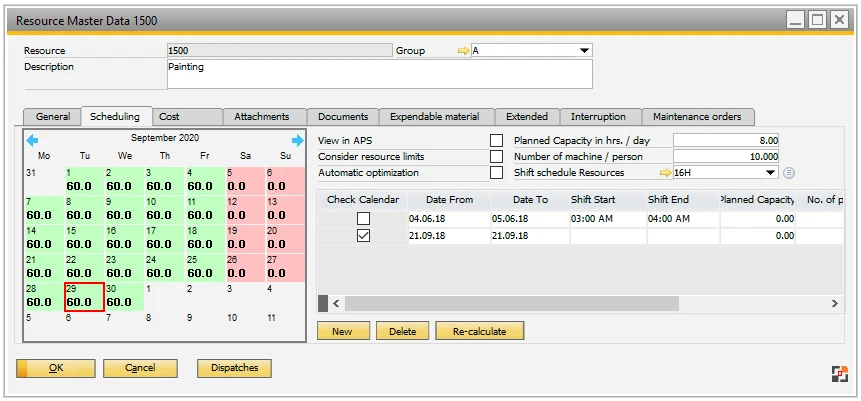
02 Enter Planned capacity net of downtime, with the right Number of machines/persons
High priority Resource › Scheduling tab · Planned capacity (hrs/day), Number of machines/personsThe rule
Planned capacity (hrs/day) is the net daily capacity, excluding cleaning, maintenance and other planned downtime, and cannot exceed 24 hours. Total net capacity is planned capacity × Number of machines/persons × the factory calendar percentage. With backward APS calculation, a Number of machines/persons above 1 disables detailed capacity planning.
Risk if ignored
Gross hours make the plant look bigger than it is: APS fills hours that are really spent on cleaning and maintenance, and delivery dates slip on the floor. A pooled resource also loses detailed capacity planning in backward APS calculation.
Fix
- Open the resource and its Scheduling tab.
- Enter Planned capacity (hrs/day) as net productive hours, at most 24.
- Set Number of machines/persons to the number of identical machines or people the resource represents.
- For machines that must be planned individually in backward APS calculation, keep the value at 1 and use separate resources in a resource group.
-
03 Switch on Consider resource limits for resources that really limit output
High priority Resource › Scheduling tab · Consider resource limits (Beas APS licence)The rule
Consider resource limits sets whether the resource has capacity limits the calculation must respect. With the calculation's capacity-limit setting enabled, a resource with limits on is never dispatched above 100%, apart from exceptions such as manual APS fixes. Switch it off for external resources, except those with planned capacity. Changing it needs the APS licence.
Risk if ignored
With limits off on a critical machine, APS books it beyond its capacity and the overload is only found on the floor. With limits on everywhere, including external resources, schedules are held up by capacity nobody needs to plan.
Fix
- Identify the resources whose capacity limits output (the Graphic Utilization Display shows where workload exceeds capacity).
- On each, open the Scheduling tab and switch on Consider resource limits.
- Leave it off for external resources, unless they have planned capacity.
- Run a calculation type that respects capacity limits and review the result in APS.
-
04 Give every resource a shift schedule and switch on Check calendar
Medium priority Resource › Scheduling tab · Shift schedule, Check calendarThe rule
A resource uses its own shift schedule; if none is assigned, it uses the shift plan of its resource group. Check calendar applies the factory calendar's percentage value to capacity; when inactive, the factory calendar is ignored. Shifts cannot run over midnight.
Risk if ignored
A resource without the right shift schedule is planned on the wrong hours, and with Check calendar off, holidays and reduced days in the factory calendar do not reduce capacity.
Fix
- Assign a shift schedule to each resource, or deliberately rely on its resource group's shift plan.
- Switch on Check calendar on resources that follow the factory calendar.
- Set up night shifts so that no single shift crosses midnight.
-
05 Record capacity changes as resource calendar exceptions, with a reason
Medium priority Resource › Scheduling tab · Resource calendarThe rule
The resource calendar holds exceptions for a period: Date from/to, Shift start/end, Planned capacity and Number of persons, each with a Reason. Exceptions override the stored shift and capacity for that period.
Risk if ignored
Extra shifts, shutdowns and short-staffed periods that live only in the planner's head never reach APS, so the schedule promises capacity that does not exist, or ignores capacity that does.
Fix
- Open the resource's Scheduling tab and the Resource calendar.
- Enter Date from/to and the shift, planned capacity or number of persons for the period.
- Enter a Reason, so the exception can be understood later.
- Recalculate the schedule for the affected period.
-
06 Set external resources to 24-hour days
Medium priority Resource › Scheduling tab (external operations)The rule
For external operations, set Planned capacity and Number of machines/persons to 1 to represent 24 hours, because external times are often entered per day.
Risk if ignored
With factory shift hours on a subcontractor resource, a job-worker's three days become many more planned days, and every order using that operation is dated too late.
Fix
- Open each resource used for external operations.
- Set Planned capacity and Number of machines/persons to 1 to represent 24 hours.
- Enter external times on the routing per day, consistent with this setting.
- Leave Consider resource limits off for these resources unless they have planned capacity.
-
07 Maintain alternative resources with their own times and the Optimization flags
Medium priority Routing position › Alternative tab · Optimization, Allow manual selectionThe rule
Each alternative resource has its own Setup time, Mach+Labor Time/unit and Use factor. Optimization lets Beas select the most adequate resource during the APS calculation; Allow manual selection controls whether users can switch to it. Automatic optimization must also be enabled on the resource and the resource group, and needs the APS licence. Alternative resources do not manage secondary times.
Risk if ignored
Without alternatives, overloaded machines keep their queue while suitable machines stand idle. Alternatives with copied times schedule work for the wrong duration, and secondary times can be lost when switching.
Fix
- On the routing position, open the Alternative tab and add the alternative resources.
- Enter each alternative's own Setup time, Mach+Labor Time/unit and Use factor.
- Set Optimization and Allow manual selection as required.
- Enable automatic optimization on the resource, resource group and alternative resource (APS licence).
-
08 Choose the APS calculation type on purpose
High priority APS › calculation typesThe rule
The default calculation types behave differently. Backward simulation ignores time reservations and material availability. Backward Dispatch dispatches to the latest possible date, taking time reservations into account, and is meant for buying material as late as possible. Dispatch forward is resource-optimised, considers fixed operation specifications and fixes started work orders; resource-oriented planning is only possible with it. forward with Material check does not start before material is available. Catch Up ignores resource limits, idle time and transfer time.
Risk if ignored
Using a simulation type for real dispatching, or Catch Up as a normal run, gives dates that ignore other orders' reservations or resource limits, so the plan looks fine and fails on the floor.
Fix
- Agree which calculation type is used for which purpose: simulation, late material purchase, resource-oriented planning.
- Use Backward Dispatch where material should be bought as late as possible.
- Use Dispatch forward for resource-oriented planning and to fix started work orders.
- Use Catch Up only to move past operations, knowing it ignores resource limits.
-
09 Set the After Movement option, then recalculate after manual moves
High priority Graphical view › After Movement (Edit plan › Views, or right-click a blank area)The rule
Work sequences can be moved freely in the graphical view. After Movement decides what happens: No action, Mark, Selecting and fixing, Select, fix at resource limits, or Fix, dispatch and bind. Moved positions are dispatched, but the following work sequences are not rescheduled; use Dispatch forward or another calculation method for that. Moved work sequences show a red arrow, except with No action.
Risk if ignored
Planners who expect later operations to follow a manual move leave the plan with overlaps and impossible sequences, and the floor receives dates that no longer fit together.
Fix
- In the graphical view, set After Movement through Edit plan › Views or by right-clicking a blank area.
- Choose Select, fix at resource limits where moves must still respect capacity.
- After moving, look for the red arrows on moved work sequences.
- Run Dispatch forward or another calculation type so the following work sequences are rescheduled.
-
10 Run the default MRP and a forward APS calculation every day for Capable-to-Promise
Medium priority Configuration wizard (default MRP) · APS forward calculation · Sales order › right-click › Capable-to-PromiseThe rule
Capable-to-Promise needs an active APS licence. Define a default MRP in the Configuration wizard and calculate it every day, and calculate work orders in APS every day using forward calculation; the result cannot be correct if reservations fall in the past.
Risk if ignored
Sales quotes a delivery date from a stale MRP and an old schedule. The date looks system-backed but ignores today's orders and load, and the promise is broken.
Fix
- Define the default MRP in the Configuration wizard.
- Calculate the default MRP every day.
- Calculate work orders in APS every day with forward calculation, so no reservations lie in the past.
- Then use Capable-to-Promise from the sales order or quotation line (right-click).
Top three to fix first
-
01
Keep Setup time and Mach+Labor Time/unit correct on every routing position
Read the rule and the fix → -
03
Switch on Consider resource limits for resources that really limit output
Read the rule and the fix → -
09
Set the After Movement option, then recalculate after manual moves
Read the rule and the fix →
A production planner and a plant head in an Indian plant office going through a printed ten-point checklist next to a screen showing Beas. Natural light, real people with permission, no posed handshake.
1200 × 900 px · WebP · planning-checklist-review.webp
More on Production Planning
-
01
Feature Guide
How Beas Capacity Planning and APS work, how they compare with standard SAP B1, and what they are worth to a plant.Read the Beas production planning feature guide -
Aa
Vocabulary
Ten planning terms as Beas names them, from routing to the APS Gantt chart, each with an everyday analogy.Learn the 10 production scheduling terms planners use -
05
5 Core Concepts
The big ideas behind finite capacity planning in Beas APS, and the shop-floor problem each one solves.Understand the 5 core concepts of capacity planning
Check these ten on your own Beas set-up
In a BPAS gap review we go through your routings, resources and calendars against these ten practices and show you which ones are costing you dates today.